
Jupyter官方建议使用pip作为jupyter的安装工具,但实际安装过程中,pip经常会出现各种错误,因此今天呈现一种基于conda安装jupyter服务器端的办法
准备工作
安装MiniConda
下载Conda运行脚本
wget -c https://mirrors.tuna.tsinghua.edu.cn/anaconda/miniconda/Miniconda3-latest-Linux-x86_64.sh运行Conda安装脚本
bash Miniconda3-latest-Linux-x86_64.sh- 阅读conda协议,按照提示输入。(跳过协议
q,yes/no都输入yes) 执行 .bashrc 脚本,这样会立即进入到 conda 的 base 环境下
source ~/.bashrc
配置Conda
添加国内镜像源
# 添加官方源
conda config --add channels r # R软件包
conda config --add channels conda-forge # Conda社区维护的不在默认通道中的软件
conda config --add channels https://mirrors.tuna.tsinghua.edu.cn/anaconda/pkgs/main/
conda config --add channels https://mirrors.tuna.tsinghua.edu.cn/anaconda/pkgs/r/
conda config --add channels https://mirrors.tuna.tsinghua.edu.cn/anaconda/pkgs/free/
conda config --add channels https://mirrors.tuna.tsinghua.edu.cn/anaconda/cloud/conda-forge/
conda config --set show_channel_urls yes
查看 conda 源是否配置成功
conda config --get channels
安装Jupyter
通过Conda安装Jupyter
创建Conda环境
conda create --name jupyter python=3.10进入刚刚创建的Conda环境
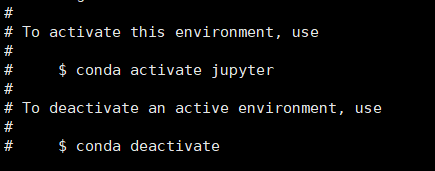
conda activate jupyter安装Jupyter
conda install notebook在下载过程中,遇到 Y/N选择时,选择Y
检查是否安装成功
jupyter notebook --version
配置Jupyter
运行Jupyter Notebook
jupyter notebook初始化Jupyter Notebook配置文件
jupyter notebook --generate-config更改配置文件
在
.../.jupyter(你创建的conda虚拟环境名称)目录下找到jupyter_notebook_config.py文件,打开它在847行找到
c.ServerApp.ip = 'localhost',将前面的#删除,并顶格,后面localhost改为c.ServerApp.ip = '*'(你也可以用find功能找到这里)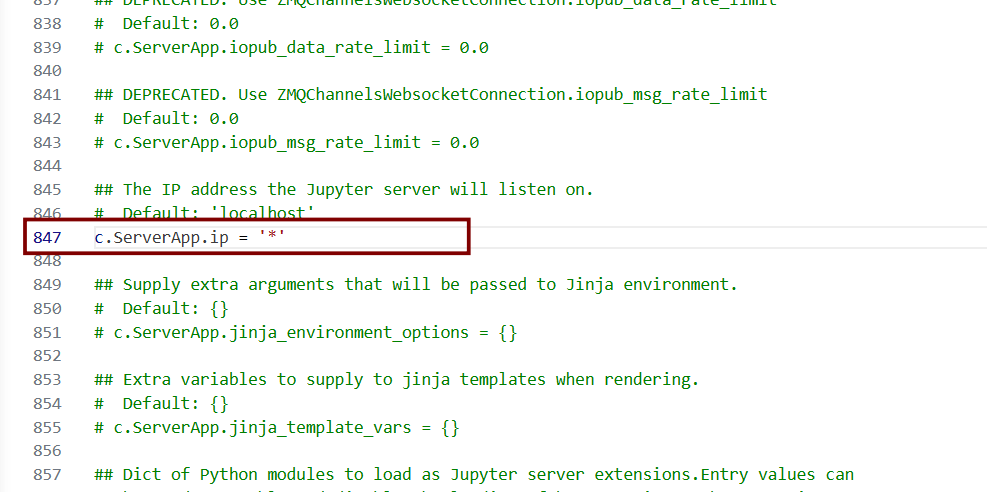
在951行找到
c.ServerApp.open_browser = False,将前面的#删除,并顶格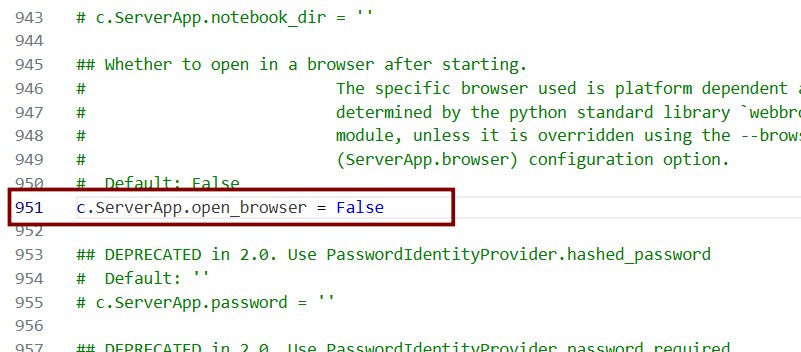
在847行找到
c.ServerApp.port = 0,将前面的#删除,并顶格.将0改为你自己要用的端口号(这里以8888为例。注意将各类防火墙放行该端口)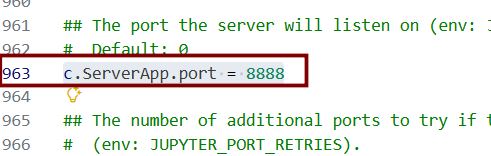
设置访问密码
jupyter notebook password启动Jupyter服务
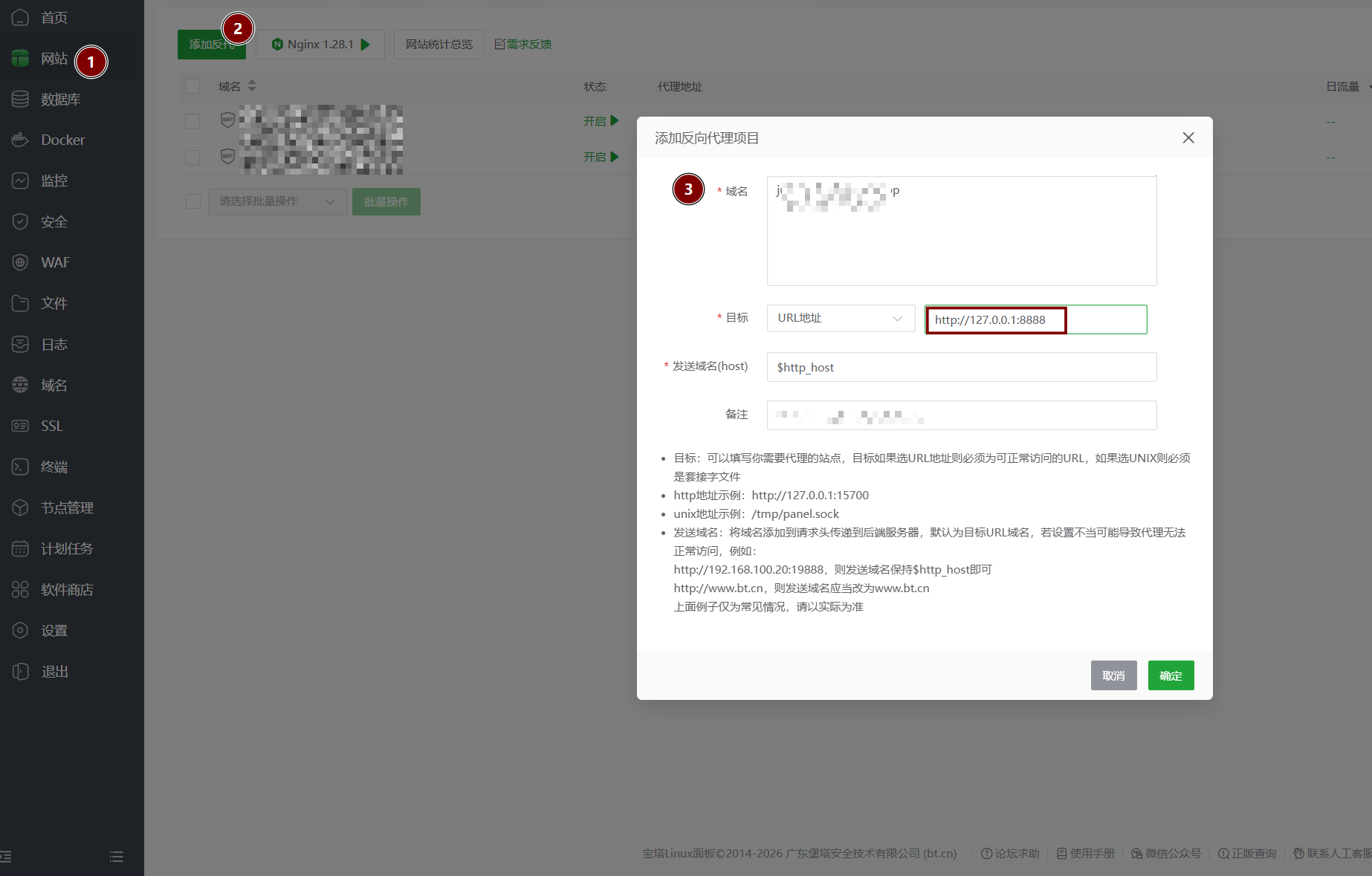
jupyter notebook --allow-root如果你有域名,你可以通过反代理来实现域名访问
通过域名或服务器地址尝试访问
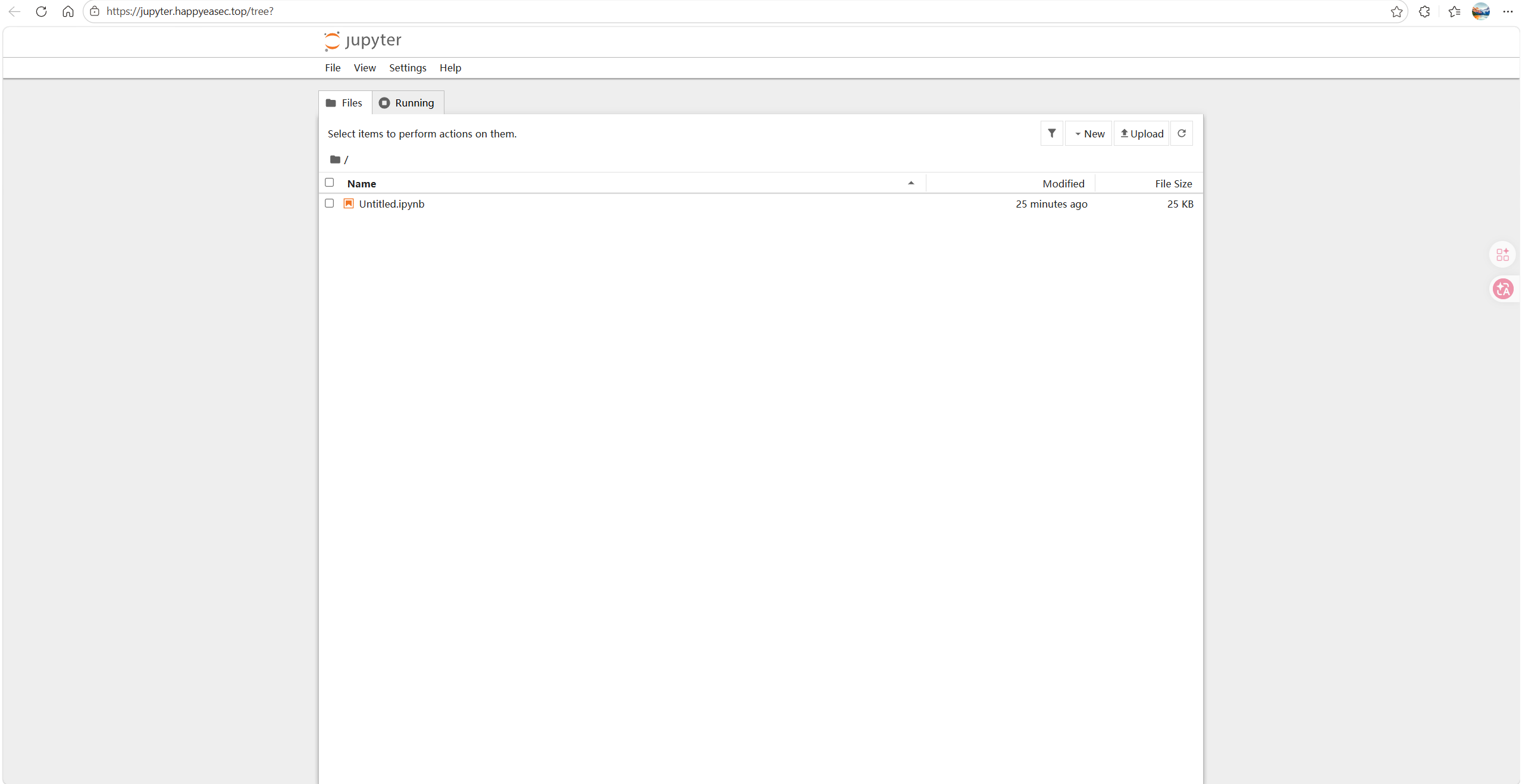
如果出现这个画面那就完成部署了
其他问题
配置Jupyter必要的运行库
如果你使用jupyter做数据处理与可视化,那必须安装"matplotlib","numpy","pandas"三个库
进入创建的conda虚拟环境
conda activate jupyter安装三个库中任意一个即可(安装一个后两外两个会被一起安装)
conda install matplotlib等待安装完成即可
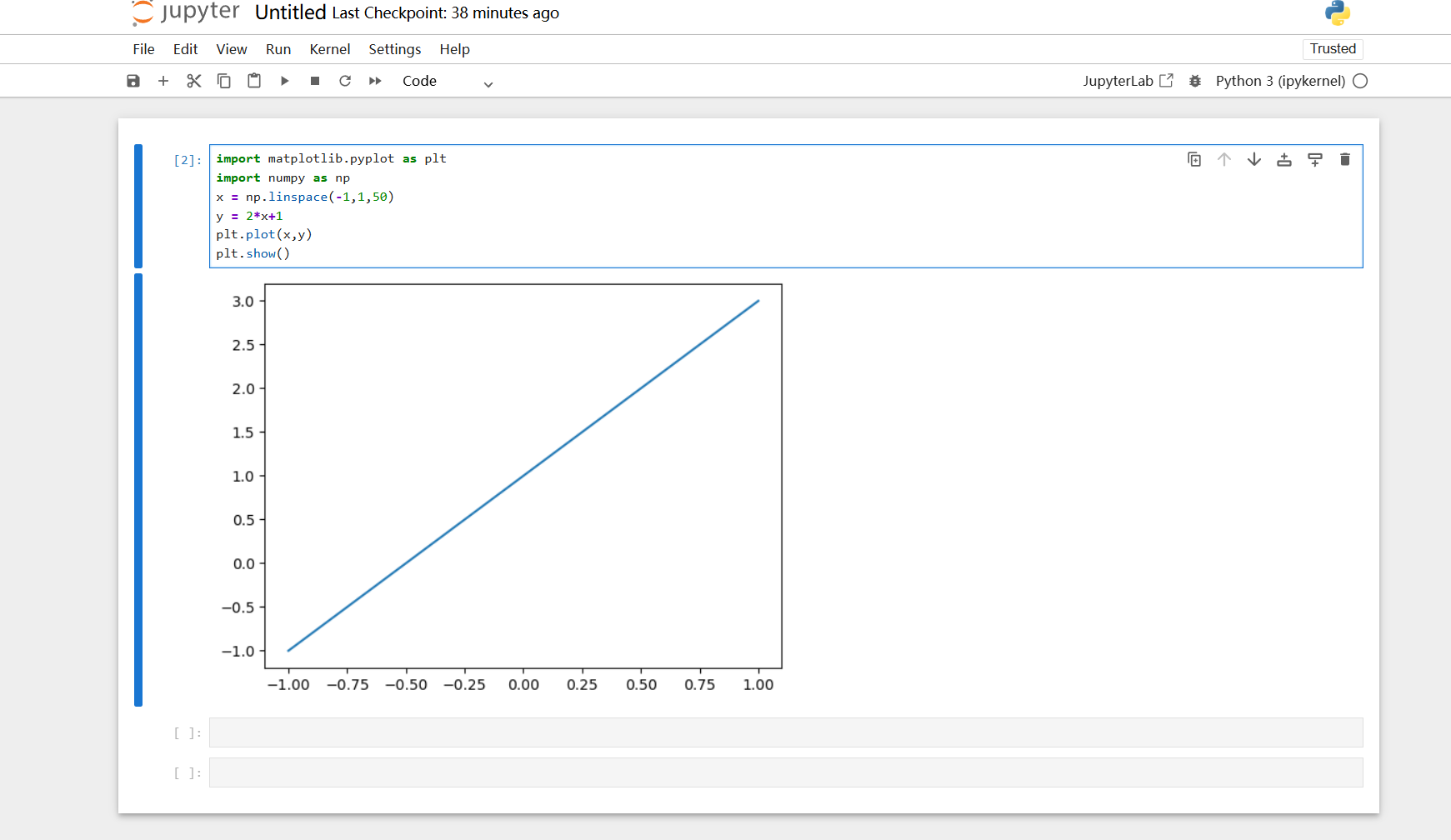
运行测试代码
import matplotlib.pyplot as plt
import numpy as np
x = np.linspace(-1,1,50)
y = 2*x+1
plt.plot(x,y)
plt.show()
如果出现一下画面则安装成功
使Jupyter能够长久运行
当我们关闭shell程序后,Jupyter就不会再被运行,因为他的进程也被一并关闭,有几种方法可以解决
使用nohup(不推荐)
nohup jupyter notebook --allow-root &使用screen工具
安装screen
sudo apt update
sudo apt install screen
创建一个screen窗口
screen -S jupyter在新的窗口运行Jupyter
注意要关闭之前运行的Jupyter服务
jupyter notebook --allow-root查看窗口
screen -ls当你之后想在进入jupyter后台,唤醒窗口
screen -r jupyter其他
# 退出当前窗口
ctrl+a+d   (方法1:保留当前窗口)
screen -d  (方法2:保留当前窗口)
exit       (方法3:退出程序,并关闭窗口)
汉化
conda install -c conda-forge jupyterlab-language-pack-zh-CN卸载Conda
删除conda目录即可
rm -rf .conda
rm -rf .condarc
rm -rf miniconda3
删除.bashrc中的conda初始化语句
nano .bashrc删除下面文字:
__conda_setup="$('/root/miniconda3/bin/conda' 'shell.bash' 'hook' 2> /dev/null)"
if [ $? -eq 0 ]; then
    eval "$__conda_setup"
else
    if [ -f "/root/miniconda3/etc/profile.d/conda.sh" ]; then
        . "/root/miniconda3/etc/profile.d/conda.sh"
    else
        export PATH="/root/miniconda3/bin:$PATH"
    fi
fi
unset __conda_setup
执行/.bashrc文件
source ~/.bashrc







评论已关闭